
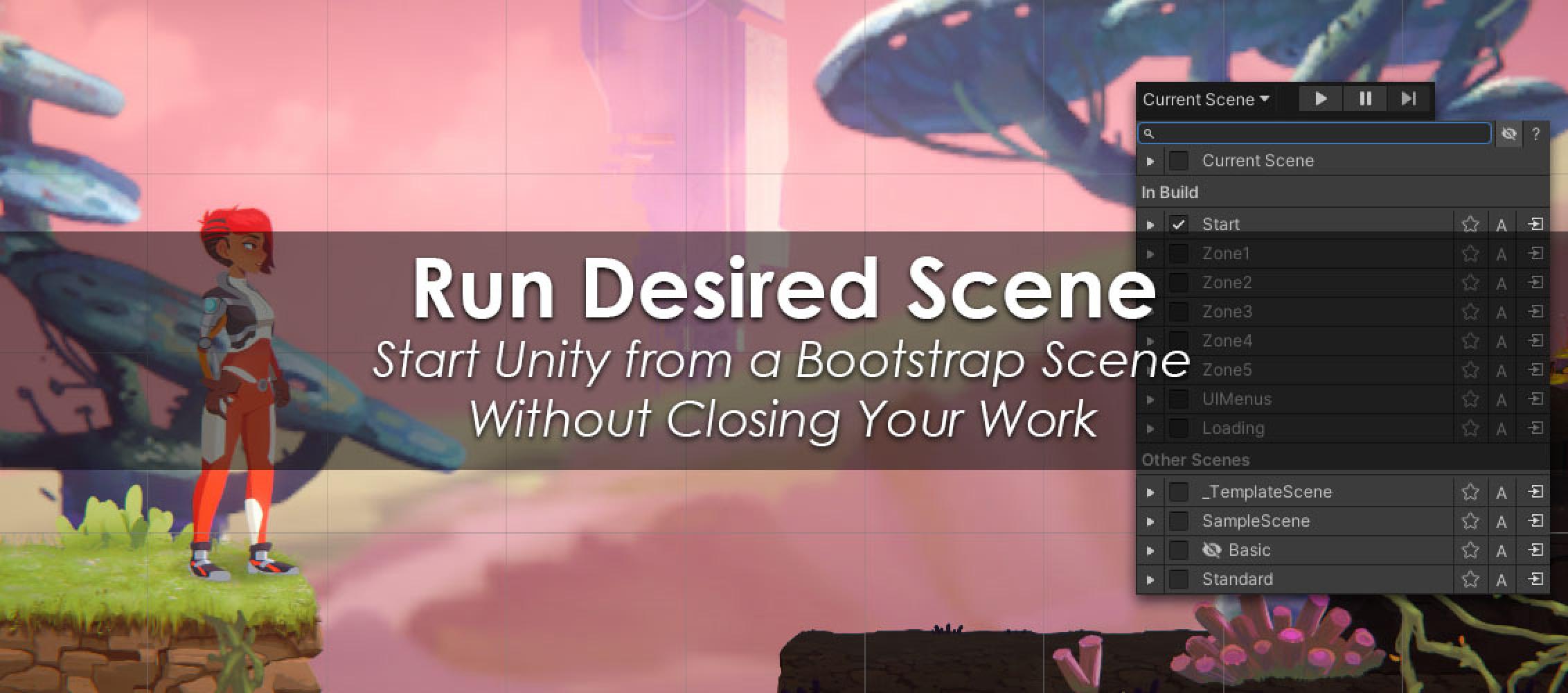

Run Desired Scene is a very powerful and easy to use tool that allows you to start playing from any scene without opening it.
After exiting play mode, you will return to the scenes open for editing.
After exiting play mode, you will return to the scenes open for editing.
Service initialization, authentication, and global managers often live in a bootstrap scene while developers edit a level or menu. Pressing Play from the current scene then bypasses required dependencies. Repeatedly closing the working scene, opening bootstrap, and rebuilding the editing setup after each test wastes time and invites mistakes.
Run Desired Scene places a start-scene selector beside Unity's Play controls. The selected scene is used for subsequent Play Mode sessions, while the original editing scene set is restored after Play Mode ends.
Define the real entry point
Confirm that the bootstrap scene represents the shipping startup path. It should be in Build Settings and initialize the same services and data as the build. Select it in Run Desired Scene and perform a complete test. Choose Current Scenes whenever normal Unity behavior is required.
Do not use the tool to hide unclear dependencies. A level opened independently should still report a missing service cleanly instead of failing later with an unexplained null reference. Starting through bootstrap reproduces the expected application path; it does not replace architectural validation.
Organize common test paths
Add the main entry points to Favorites: bootstrap, a test harness, and the menu. In a large project, the CamelHumps filter can find compound scene names from their initials. Temporary or package demo scenes can be hidden from the selector. Hiding only changes the tool's list and does not remove assets.
Scenes may also be marked for additive loading at startup. An additive scene must be in Build Settings because Unity requires it. Use this list for persistent systems, lighting, or test infrastructure, but ensure the bootstrap code does not load the same scene a second time.
Verify restoration
Open a normal multi-scene editing setup, make a harmless unsaved test change, run the configured entry point, and leave Play Mode. Confirm that the previous scene set returns and the edit remains intact. After a Unity upgrade, the built-in Check Integrity utility is useful because the asset relies on non-public Editor members and can report whether they are still present.
The selector is available only in Edit Mode. It is not a runtime scene-navigation system; gameplay transitions still belong in code using SceneManager or the project's own flow.
Run Desired Scene solves a narrow Editor problem: it executes the correct startup path without dismantling the current workspace. With Build Settings, bootstrap logic, and additive scenes kept consistent, short iteration tests become much more predictable.